What Is An App?
When you first set up Nuon, you will map your existing product into one or more apps. An App is a fully configured version of your product that can be installed into your customer’s cloud account.How do you configure an App?
Each app is represented as multiple configuration TOML files. Each app consists of the following parts:Sandbox- The base infrastructure layer e.g., AWS EKS, Azure AKSRunner- The Nuon service that manages the installInputs- Customer-provided input values specific to each install e.g., app release, domain nameComponents- Your application e.g., Helm, manifests, load balancers, certificates, Terraform
Sandbox
The sandbox sets up your application’s base compute environment, such as a Kubernetes (EKS, AKS, GKE) or ECS cluster. It gives your app a consistent, isolated place to run across every install. In a shared-responsibility model, the sandbox can also build on infrastructure a customer already provides, such as an existing cluster. Read more about the Sandbox concept, or follow the Configuring Sandboxes guide to set one up.Networking
Networking is provisioned by the install Stack: the Terraform or CloudFormation/Bicep that the customer deploys first. The Stack creates:- The network the app runs in (a VPC on AWS, a VNet on Azure)
- The Runner that deploys and operates your app
- The permissions the Runner needs
Inputs
Inputs allow you to define different inputs that customers can provide to an app. This enables you to create “configuration” knobs that your customers can manage to control your application. Inputs are commonly used to:- Allow users to select regions and provide access to an account
- Customize app & infrastructure versions, such as pinning a Kubernetes cluster version
- Re-use existing infrastructure, such as providing a
vpc_idthat has been granted access
Components
Components are used to connect your existing application and infrastructure code to your app. Components allow you to:- Import existing images, or build Dockerfiles and sync these artifacts into customer accounts
- Deploy Helm charts
- Deploy Kubernetes manifests
- Deploy Terraform code
Helm Chart Components
Kubernetes Manifest Components
Terraform Components
Docker Build Components
Container Image Components
Image Update Policies
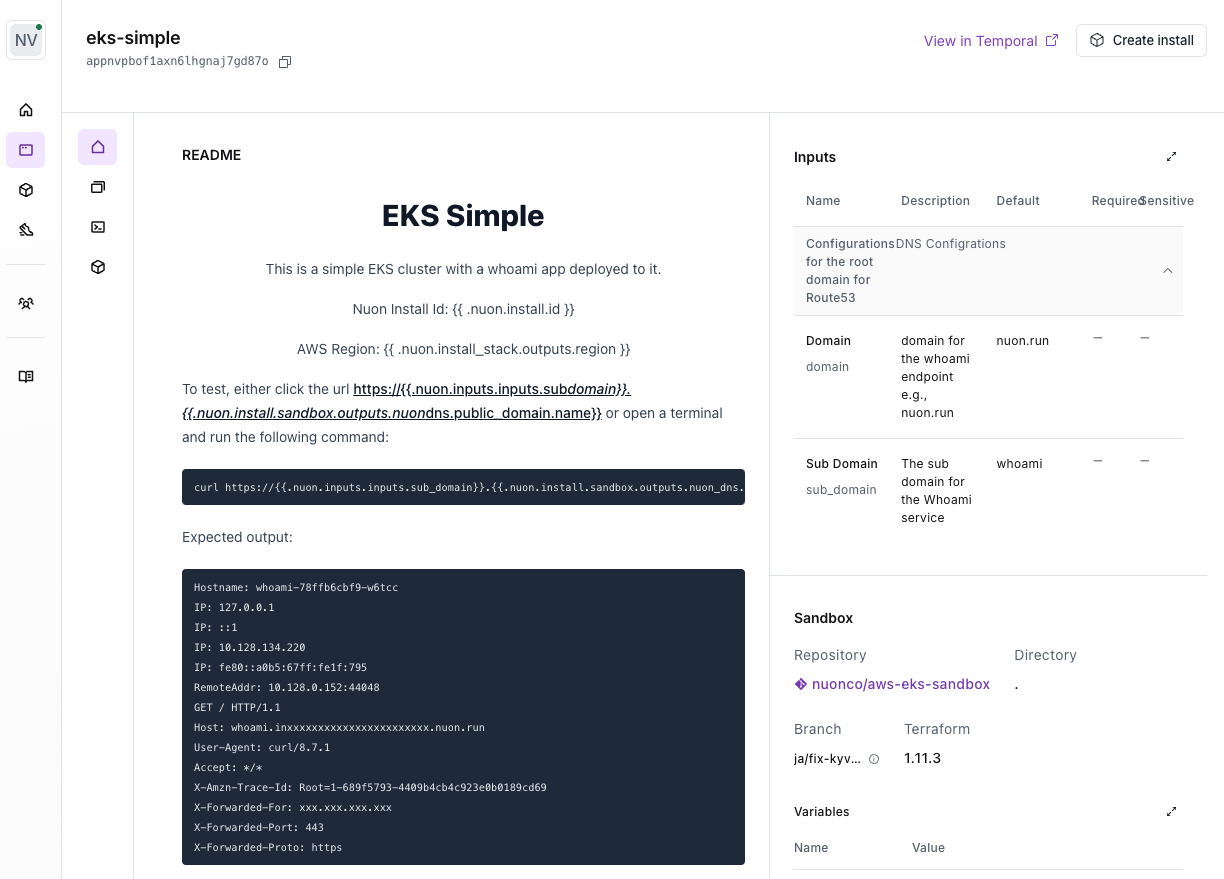
READMEs
When running an app in an Install, you often need to document important info. e.g., the app’s access URL, the install state, links to documentation. It can also be nice to have some level of programmability, such being able to render a button that will trigger an action. Additionally, this documentation must be rendered per-Install because certain values — such as URLs — will be different for each Install. App READMEs were introduced to support this. Each app has aREADME.md text field
where you can define a Markdown document which will be rendered in the dashboard
for each Install of that App. You can use all valid Markdown, including HTML.
You can also use variables, so that the document will be custom-rendered for
each Install.
See the Using READMEs guide for more details.
App Management
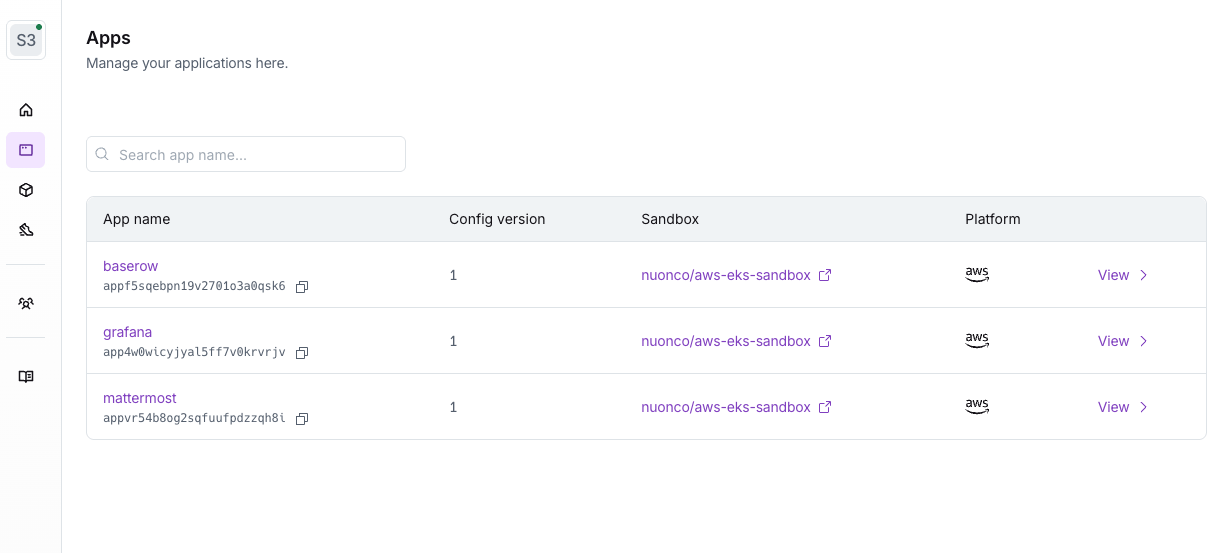
The CLI exposes many operational commands to manage apps. The dashboard can also provide limited app management functionality. See the Managing Apps guide for common workflows. To see all available commands, run:nuon apps --help.
Commands for creating, deleting, and viewing apps.
Create a local app directory - Create a directory and name it after your
app. This directory will contain your App’s configuration files.
.toml config files are used to represent a configuration for a single
app. For consistency, the app name must be the same name as the directory you
created above.
-a to each command.
Each example below assumes you have run
nuon apps select first.Configuration
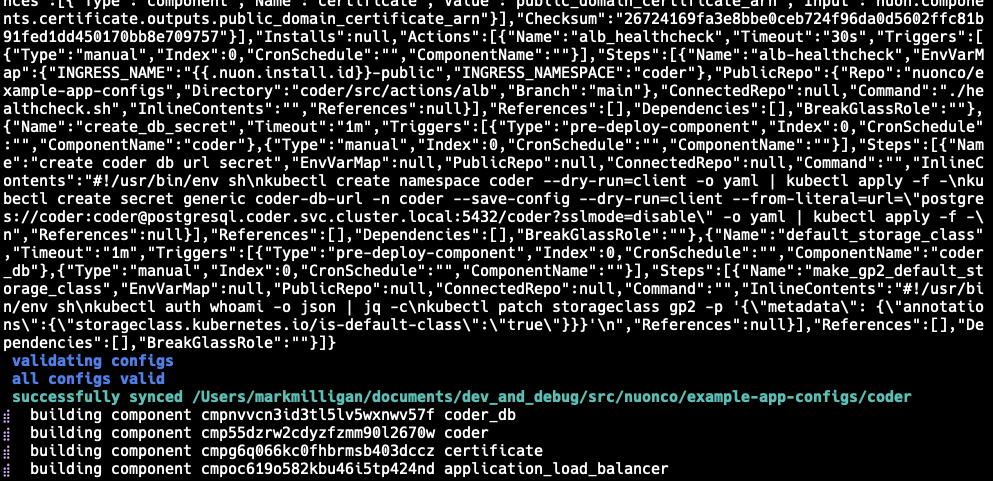
You can view various configs for an app and sync configuration files using the CLI. Sync - Sync config files to the Nuon control and data plane Sync is a critical step as you iterate and update you app configuration. Syncing performs syntax validation, uploads your configuration to the Nuon control plane, and triggers builds for any components. e.g., Terraform module, Helm chart, Kubernetes manifest, container image. If any component TOML files have changed, or any related files such as Helmvalues.yaml files, a new build will be triggered during sync.
If component source files have changed, you must push those changes to your git repo, then manually build the component using the dashboard or CLI.
Sync all config files in the current directory:
The output of the following 2 sub-commands are JSON so to improve readability,
use
jq or pythonApp Metadata
You can add the following metadata to your app, which is used in installers:display_namedescription
metadata.toml config file in the app root directory:
readme field points to a README.md file that will be rendered in the
Dashboard for each app and its installs.